
Words & review
Where your saved words appear
Find a saved word in Word Hub and understand how the shared account connects the webapp with the extension.
4 min read · Updated 2026-08-22
One collection, two surfaces
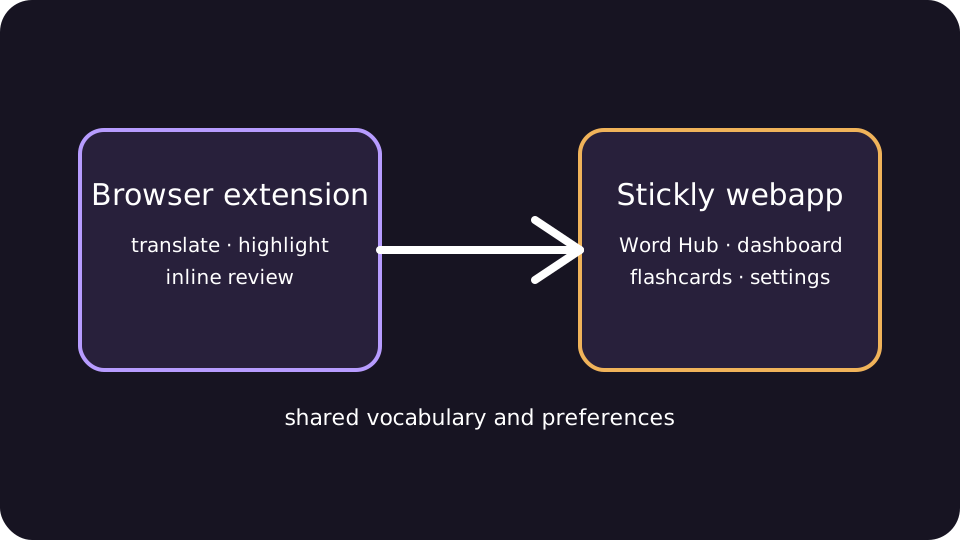
A word saved by the extension is part of your Stickly account vocabulary. The extension uses it for future page highlights and review; Word Hub is where you manage the collection in detail.
Find it in Word Hub
Open Word Hub: Sign in to the webapp and open Words. Choose a focus: Use the language focus or pair that matches the word you saved. Search: Search the collection by the word or translation; widen the focus if needed. Open its details: Inspect context, status, next review, audio, and available edit actions.
See it while browsing
On a later page, a matching saved word may be highlighted when remembered-word highlights are enabled. Purple indicates a normal remembered word; orange indicates one due for review.
If it is missing
Confirm the extension and webapp use the same signed-in account. Check the language pair and Word Hub focus. Refresh the webapp or page after a network interruption. Use the troubleshooting article if the collection remains empty.
Still stuck?
Tell us what happened.
Include the page, browser, and what you expected. A human reads every message.