
Webapp
Export selected words to Anki
Create an Anki export from Word Hub with an intentional language, list, or selection scope.
4 min read · Updated 2026-08-22
Prepare the collection
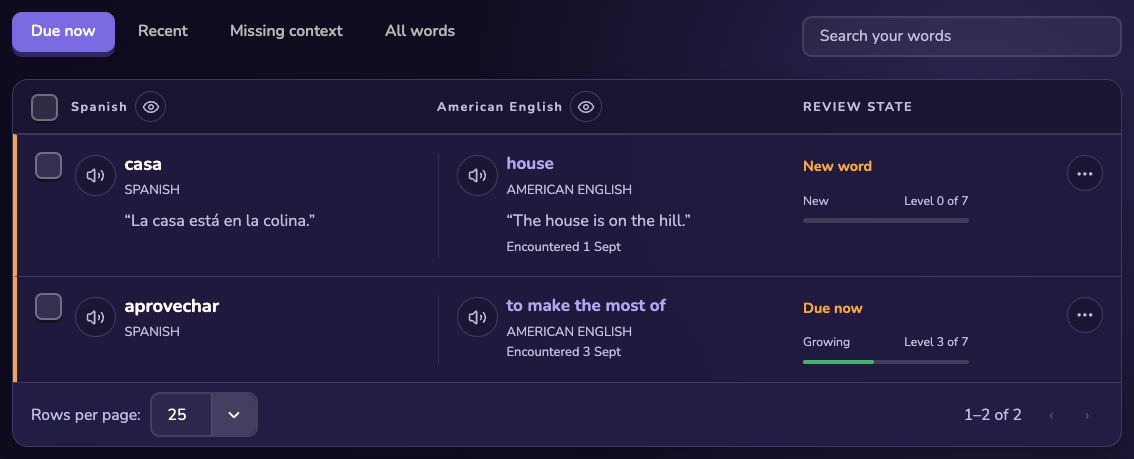
Open Word Hub, set the language focus you want, and search or select the words to export. Decide whether you need a full language scope, the visible list, or only checked words.
Create the export
Open export: Choose the Anki export action in Word Hub. Choose scope: Select the language, pair, visible list, or selected words that should be included. Review fields: Check the preview and available word, translation, context, and audio-field choices. Download: Confirm the export and save the generated file where you can find it.
Avoid common scope mistakes
A filtered view is not necessarily the same as every word in the account. Selected-word export depends on the current checked selection. Language-pair scope matters when your collection contains multiple pairs. Anki media fields may reserve an audio field; check the export wording before expecting bundled audio files.
Import carefully
Import the downloaded file using Anki’s own import flow and review its field mapping before committing. Keep the Stickly collection as the source for future edits unless you intentionally maintain both copies.
Still stuck?
Tell us what happened.
Include the page, browser, and what you expected. A human reads every message.