
Stickly is easiest to understand as a small loop inside your normal reading: choose an unfamiliar word, ask for its translation, meet it again later, and try to recall the meaning before it is revealed. You do not need to import a vocabulary list or begin with a long study session.
This guide takes you through that loop once, then shows the controls that keep it from becoming noisy. Allow about ten minutes for setup and your first few translations. The reviews happen later, when saved words become due and appear in something else you read.
About the screenshots: The focused browsing views come from Stickly’s local extension playground, while Settings and Words come from the webapp’s Storybook. They use the real product components with deterministic sample data, cropped to the control or state being explained.
Your first ten minutes
1. Install the extension and keep it within reach
Install Stickly from its official Chrome Web Store listing. After installation, Stickly opens its first-translation walkthrough.
If the icon is hidden, Chrome’s extension-management guide explains how to open the Extensions menu and pin an extension to the toolbar. Pinning is optional, but it makes the popup and its current-site controls easier to find.
The walkthrough can start directly with a practice article. If you need to change the language pair first, choose Back to languages, then set:
- I want to learn to the language used on the pages you plan to read.
- I speak to the language in which you want to see translations and answer reviews.
You can change both later in Settings → Languages.
2. Pick a real page, not a vocabulary exercise
Open an article, forum, documentation page, recipe, or story in your learning language. Choose something you genuinely want to understand. The current Stickly product overview describes the same core loop: translate a word in place, see it again in later reading, and review it when it is due.
For your first session, save only two or three words. A good candidate:
- blocks your understanding of the sentence;
- appears more than once;
- seems useful beyond this page; or
- makes you curious enough to remember why you chose it.
This keeps the reading session intact and gives you a small, meaningful set to recognize later. If you want a deeper habit-building method, see How to learn vocabulary while you browse.
3. Select, then choose the Stickly action
Select an unfamiliar word. In the default action mode, a small Stickly symbol appears near the selection. Choosing that symbol requests the translation; selecting text alone does not.

That distinction matters during normal browsing. You can still copy text, edit a document, or change a selection without every selection becoming a translation request. If you prefer an even quieter setup, Settings → Browsing → Translate action can be changed to Shortcut only. Check the extension popup or settings for the current shortcut rather than memorizing a fixed key combination.
After you choose the action, the translation bubble appears beside the word. It can play audio and may offer more context or alternatives. The Chrome Web Store description describes this as a contextual translation that is added to your personal vocabulary.

You can try Stickly before creating a permanent account. Creating or linking an account later lets saved words, preferences, and review progress sync across devices, as explained in the Stickly privacy policy. If you want that continuity, create the account after your first successful translation rather than postponing the first-use test.
What happens after you save a word
The first translation is only the capture step. Stickly becomes useful when the same vocabulary returns.
Remembered and due words look different
A purple highlight is a saved word that is not currently due for review. An orange highlight marks a word that is due. On a fresh installation, highlights begin in the quieter Due only mode; you can switch to All words or Off in Settings → Browsing.
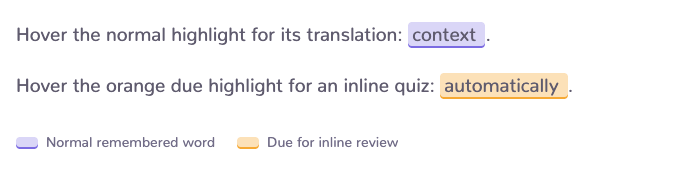
Hovering or intentionally opening a remembered highlight reveals its saved translation. A due word can open an inline quiz when Inline quiz is enabled. Not every saved item becomes an inline typing challenge: the feature is intended for due single-word pairs, while phrases and other items remain available through the broader review tools.
The inline quiz asks for recall, not another lookup
For a due word, type the translation in your native language. The inline quiz uses character-position feedback:
- Perfect match! means the character is correct and in the correct position.
- Wrong spot means the character appears in the answer but belongs elsewhere.
- Not in solution means it does not appear in the accepted answer.
The inline web quiz help page documents this feedback model and the option to reveal the translation after repeated attempts.
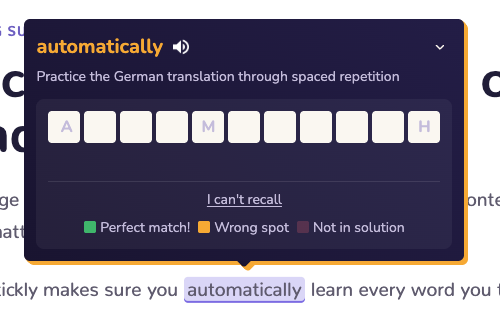
If you cannot recall the answer, use I can’t recall. Revealing the answer is better than guessing indefinitely. The point is to create a brief retrieval attempt and return to the page.
A correct review changes the word’s state
After a correct answer, Stickly confirms the meaning, shows the proficiency change and next review, and saves the progress. You may also be asked whether recall felt Hard, Good, or Easy. Matching highlights on the page turn green to mark the successful review.
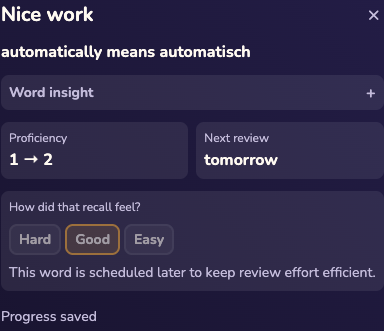
The standalone tile game and flashcards are optional review surfaces. They use the vocabulary you collected, but they are separate from the inline quiz you see while browsing.
Make Stickly as quiet as you need
Translation, remembered-word highlights, and inline practice are independent. Turning off one does not require turning off the others. That is the most important setup principle for a new user.
| If you want… | Change this |
|---|---|
| No action appearing after an ordinary selection | Translate action → Shortcut only |
| Only review-ready highlights | Remembered-word highlights → Due only |
| No automatic word highlights | Remembered-word highlights → Off |
| Translation and highlights without quizzes | Turn off Learning → Inline quiz |
| Stickly only on chosen websites | Where Stickly runs → Selected only |
| A break on one page | Disable Stickly in this tab |
| A durable exception | Disable Stickly on this website |
The translation menu exposes the fastest local controls. It also lets you edit a translation, remove the word, stop highlighting, disable practice, open settings, or visit help. For durable behavior across websites, the webapp’s Browsing settings keep the independent choices together:
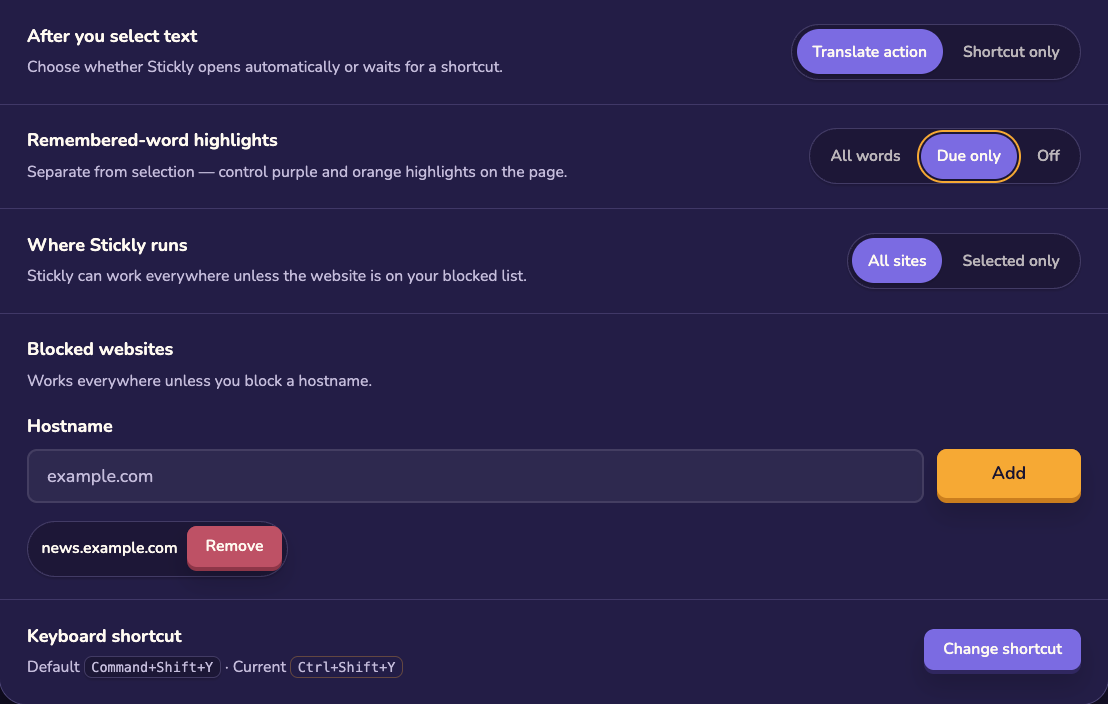
Use the local menu when a particular word, tab, or website needs a different rule. The Stickly homepage summarizes the same separation between translation, highlights, inline practice, and site-level pausing. Start with Due only for a restrained experience. Move to All words only if seeing every saved word again helps more than it distracts.
Where your saved vocabulary goes
After you create an account, open Words to reach your collected vocabulary. There you can search, filter to words due now, inspect recent items or missing context, listen to either side, edit terms, remove words, and export to Anki.
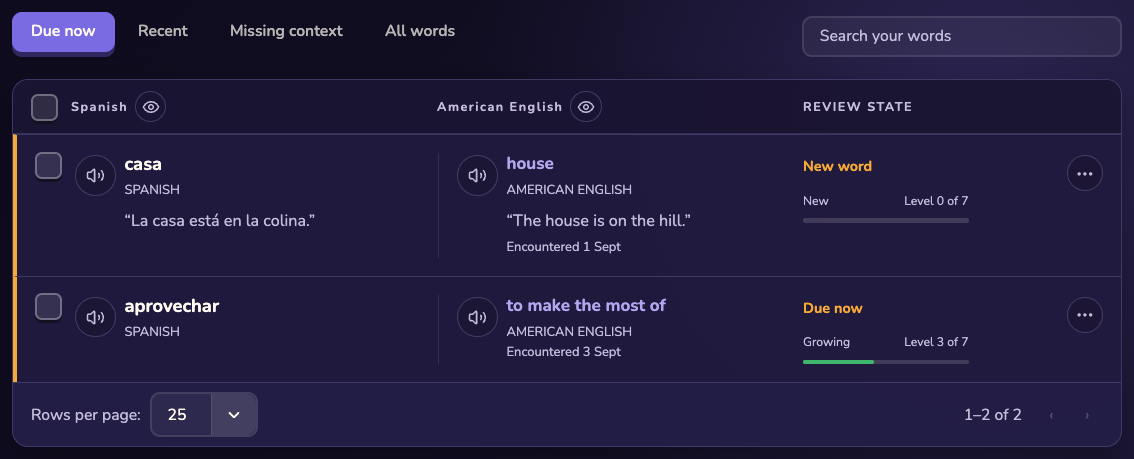
Use the word hub for maintenance, not as a requirement after every reading session. A useful weekly check is:
- Remove accidental or low-value saves.
- Correct translations that do not match the original sentence.
- Use flashcards or the tile game for due words you did not meet naturally during the week.
- Export only if another study system is already part of your routine.
Context sentences are optional and are off by default. Enable Settings → Learning → Save context sentences if you want future translations to retain that extra reading context.
A simple first-week routine
For one week, keep the routine deliberately small:
- Read something you would have opened anyway.
- Translate two or three useful words.
- When orange words appear, attempt the inline review.
- If you later switch to All words, use purple highlights as brief recognition cues.
- If Stickly interrupts the page too often, change one control instead of disabling everything.
Do not judge the product by how many words you collect on day one. The useful test is whether a word returns in later reading and whether the short recall attempt helps you understand it faster.
Ready to try the full loop? Install Stickly, choose one article you care about, and save the first word that genuinely changes your understanding.
Sources
- Stick.ly — Chrome Web Store
- Install and manage extensions — Google Chrome Help
- Stickly product overview
- Stickly inline web quiz help
- Stickly Privacy Policy
This article was produced with AI-assisted research and automated checks by Stickly Editorial. Product steps were verified against the current Stickly webapp and extension source, and the screenshots use deterministic playground and Storybook data rather than a real account.